Boot XP+WIN7+Hiren's Boot CD by USB

Windows XP + Hiren's BootCD + Windows 7
- TESTED ON 14/04/11
You will need the following:
Windows XP CD or ISO
Hiren's BootCD or ISO [optional]
USB_Multiboot_10.zip
Windows 7 CD or ISO [optional]
Unpack USB Multiboot 10. After that put your XP disc into your CD drive or mount using powerISO or daemon
Go into the folder that you just unpacked the program to and click the file: USB_MultiBoot_10.cmd:
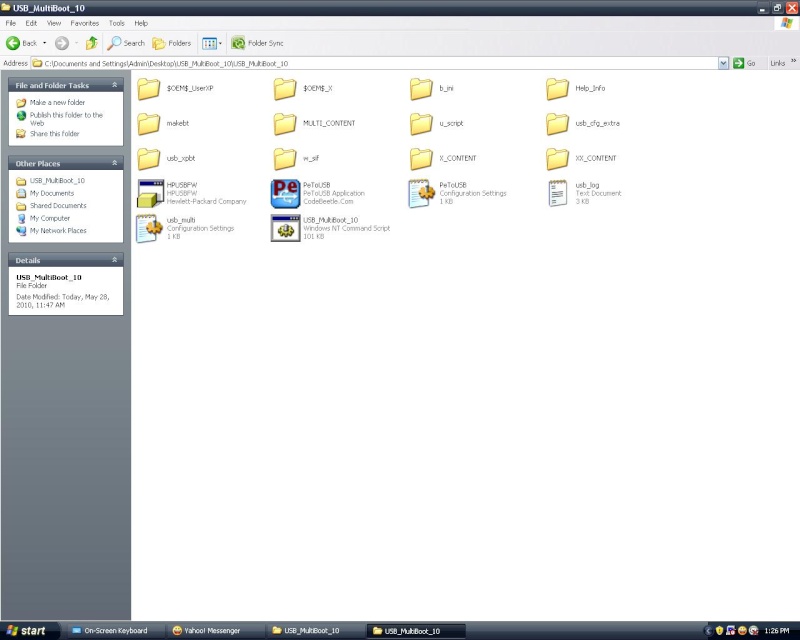 Press any key to continue...
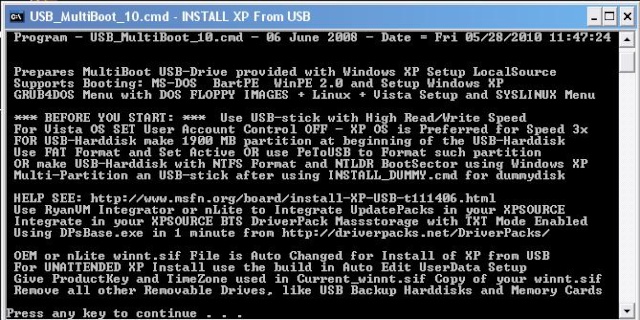 Since we are using a 4g Flash drive it will need to be formatted so the XP files can be copied to it.
When ready type in "H" and press "ENTER" (note: all files will be lost on flash drive!)
Since we are using a 4g Flash drive it will need to be formatted so the XP files can be copied to it.
When ready type in "H" and press "ENTER" (note: all files will be lost on flash drive!)
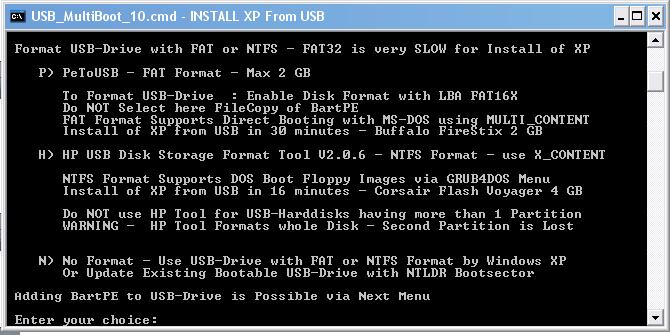 im using 4 gb Flash Drive so i wil format it using HP USB Disk Format Tool
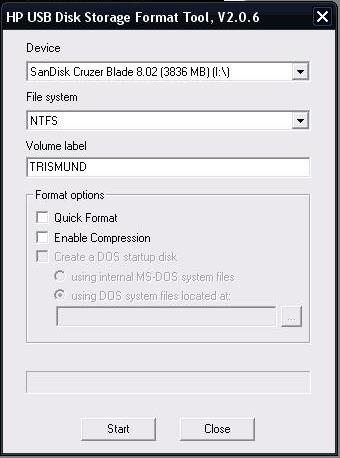 Make sure that your USB drive is in the "Destination Drive"at the top.
You must also name the usb drive label (it will probably already be named, that is fine).
If you follow the settings that I have above in the picture you should be good to go.
Click "Start"
Answer yes to the question
Make sure that your USB drive is in the "Destination Drive"at the top.
You must also name the usb drive label (it will probably already be named, that is fine).
If you follow the settings that I have above in the picture you should be good to go.
Click "Start"
Answer yes to the question
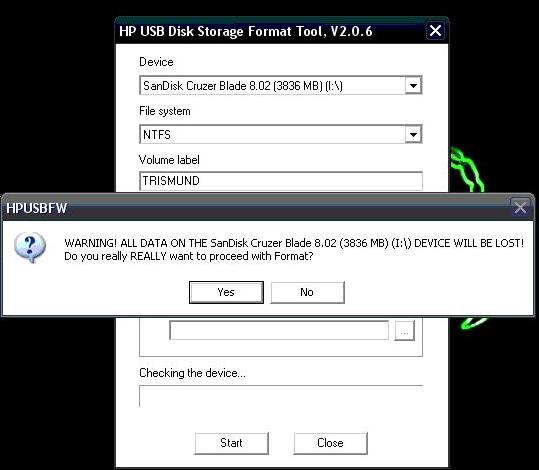 When it finishes click the "Close" button and you will be taken to this window:
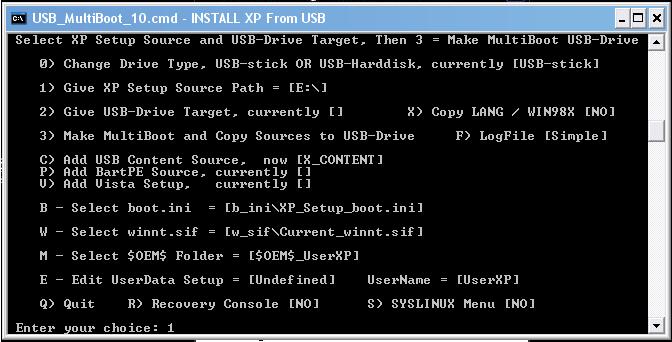 - Type in "1" then press "enter" and choose the place where WinXP is (probably your CD drive)
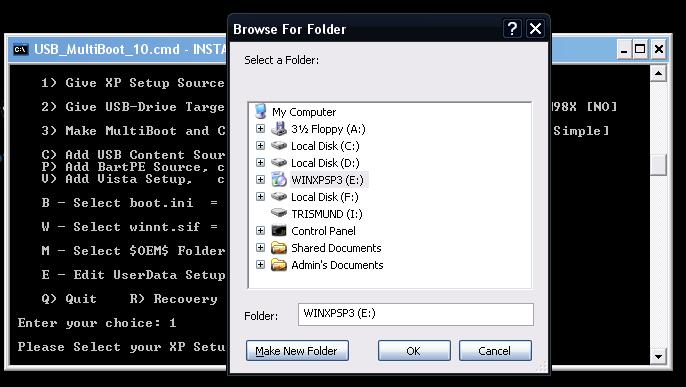 - Type in "2" then press "enter" and choose the place where your flash drive is located.
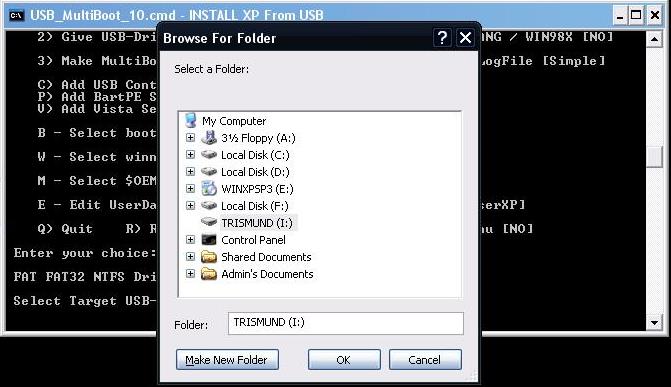 - Type in "3" and press "enter" and the XP files will be copied to the usb drive. Answer yes to any questions that follow.
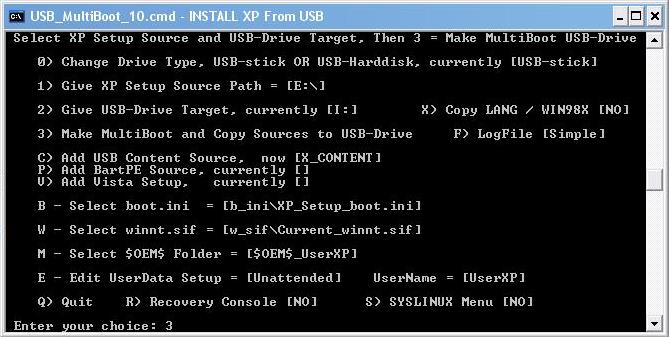 While the files are being written to the usb drive eventually one screen will pop up asking you to choose:
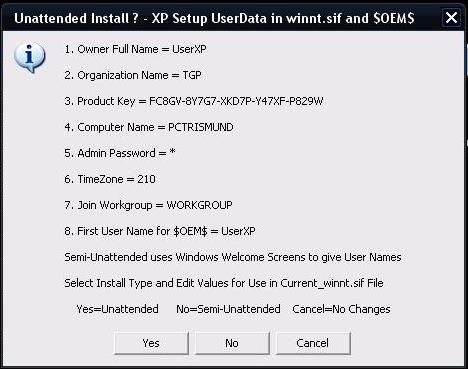 *A. Unattended Install - UserName = YourName
in winnt.sif file - unattendswitch="Yes" - UserName is used Automatically
useraccounts.cmd with UserName is created in *OEM* Folder copied to USB-drive
(Selecting Unattended Install in the Editor instead of Cancel will enable you to skip the Welcome Screens by filling in the information right now.)
*B. Semi-Unattended Install - UserName = None
in winnt.sif file - unattendswitch="No" - UserNames are given Manually at Windows Welcome Screens
useraccounts.cmd is Renamed to Inactive txt file in *OEM* Folder copied to USB-drive
*C. Cancel - In all cases Selecting Cancel keeps given Settings for winnt.sif file and *OEM* folder Unchanged
If you'd just rather fill in the information during the actual install of WinXP on your PC it's the same exact thing as choosing Unattended Install, Unattended Install just allows you to fill in the information now instead of later.
*A. Unattended Install - UserName = YourName
in winnt.sif file - unattendswitch="Yes" - UserName is used Automatically
useraccounts.cmd with UserName is created in *OEM* Folder copied to USB-drive
(Selecting Unattended Install in the Editor instead of Cancel will enable you to skip the Welcome Screens by filling in the information right now.)
*B. Semi-Unattended Install - UserName = None
in winnt.sif file - unattendswitch="No" - UserNames are given Manually at Windows Welcome Screens
useraccounts.cmd is Renamed to Inactive txt file in *OEM* Folder copied to USB-drive
*C. Cancel - In all cases Selecting Cancel keeps given Settings for winnt.sif file and *OEM* folder Unchanged
If you'd just rather fill in the information during the actual install of WinXP on your PC it's the same exact thing as choosing Unattended Install, Unattended Install just allows you to fill in the information now instead of later.
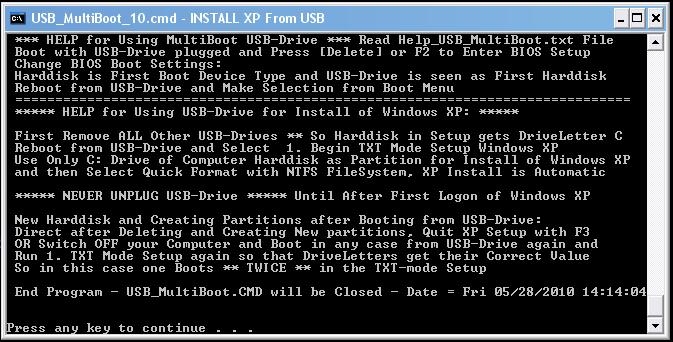 Finish for Creating Bootable USB Windows XP Setup
Press any key to continue...
Now to add Hiren's BootCD 10.4
Insert Hiren's BootCD to your CD Drive or Mount using PowerISO/Daemon
Finish for Creating Bootable USB Windows XP Setup
Press any key to continue...
Now to add Hiren's BootCD 10.4
Insert Hiren's BootCD to your CD Drive or Mount using PowerISO/Daemon
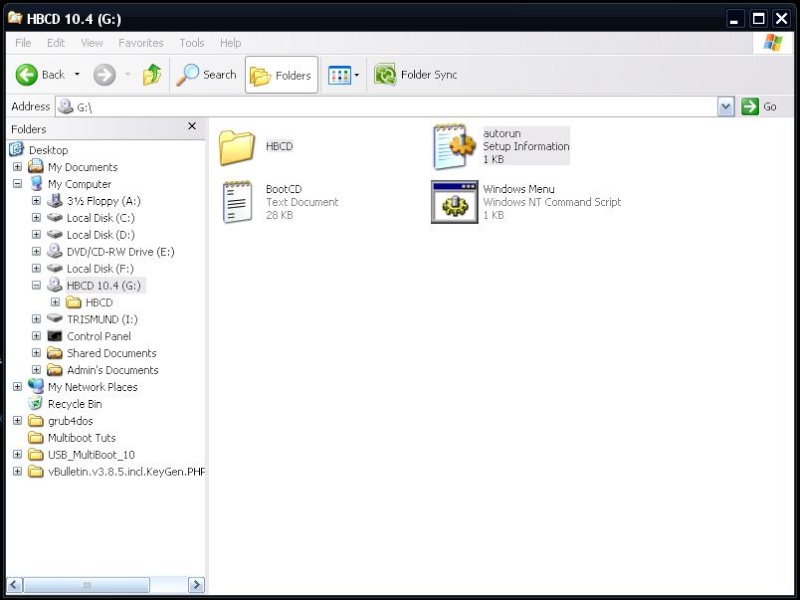
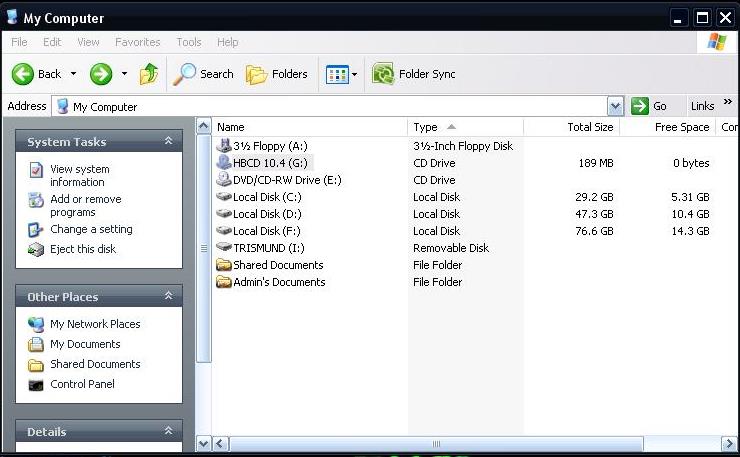 Right Click on your Hiren's Drive and click Explore to view the contents
copy HBCD and autorun.inf to your USB flash Drive
Right Click on your Hiren's Drive and click Explore to view the contents
copy HBCD and autorun.inf to your USB flash Drive
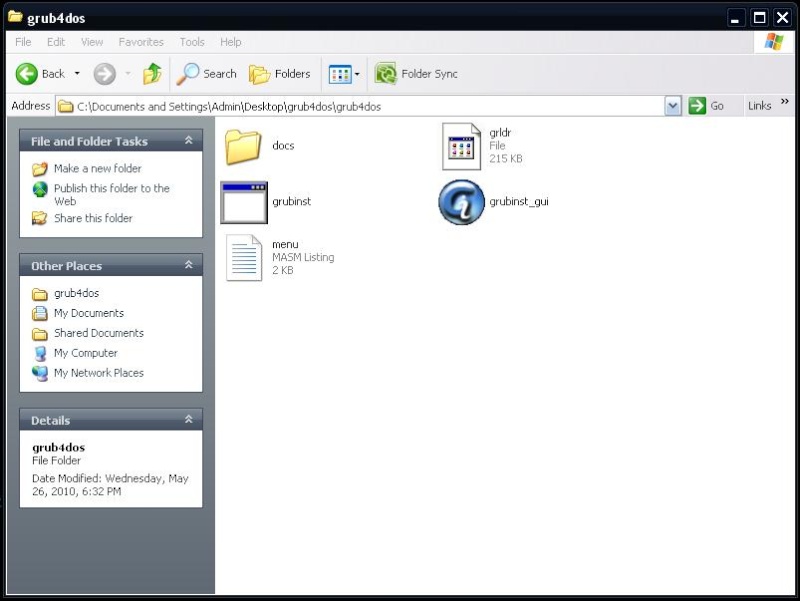
 copy "gldr" and "Menu.lst" to your USB Flash Drive..
 Now you have a multiboot USB flash drive with Windows XP setup and Hiren's BootCD..
You have to Set you BIOS to boot from USB Flash Drive..
If you are having problem on changing boot order in bios, please refer Change the Boot Order in BIOS document.
To Add Windows 7 Setup:
just copy the contents of your Windows 7 CD to your USB then add this to menu.lst
title Windows 7
root (hd0,0)
chainloader /bootmgr
Note: Tested working in Windows XP
Now you have a multiboot USB flash drive with Windows XP setup and Hiren's BootCD..
You have to Set you BIOS to boot from USB Flash Drive..
If you are having problem on changing boot order in bios, please refer Change the Boot Order in BIOS document.
To Add Windows 7 Setup:
just copy the contents of your Windows 7 CD to your USB then add this to menu.lst
title Windows 7
root (hd0,0)
chainloader /bootmgr
Note: Tested working in Windows XP
Press any key to continue...
Since we are using a 4g Flash drive it will need to be formatted so the XP files can be copied to it.
When ready type in "H" and press "ENTER" (note: all files will be lost on flash drive!)
im using 4 gb Flash Drive so i wil format it using HP USB Disk Format Tool
Make sure that your USB drive is in the "Destination Drive"at the top.
You must also name the usb drive label (it will probably already be named, that is fine).
If you follow the settings that I have above in the picture you should be good to go.
Click "Start"
Answer yes to the question
When it finishes click the "Close" button and you will be taken to this window:
- Type in "1" then press "enter" and choose the place where WinXP is (probably your CD drive)
- Type in "2" then press "enter" and choose the place where your flash drive is located.
- Type in "3" and press "enter" and the XP files will be copied to the usb drive. Answer yes to any questions that follow.
While the files are being written to the usb drive eventually one screen will pop up asking you to choose:
*A. Unattended Install - UserName = YourName
in winnt.sif file - unattendswitch="Yes" - UserName is used Automatically
useraccounts.cmd with UserName is created in *OEM* Folder copied to USB-drive
(Selecting Unattended Install in the Editor instead of Cancel will enable you to skip the Welcome Screens by filling in the information right now.)
*B. Semi-Unattended Install - UserName = None
in winnt.sif file - unattendswitch="No" - UserNames are given Manually at Windows Welcome Screens
useraccounts.cmd is Renamed to Inactive txt file in *OEM* Folder copied to USB-drive
*C. Cancel - In all cases Selecting Cancel keeps given Settings for winnt.sif file and *OEM* folder Unchanged
If you'd just rather fill in the information during the actual install of WinXP on your PC it's the same exact thing as choosing Unattended Install, Unattended Install just allows you to fill in the information now instead of later.
Finish for Creating Bootable USB Windows XP Setup
Press any key to continue...
Now to add Hiren's BootCD 10.4
Insert Hiren's BootCD to your CD Drive or Mount using PowerISO/Daemon
Right Click on your Hiren's Drive and click Explore to view the contents
copy HBCD and autorun.inf to your USB flash Drive
copy "gldr" and "Menu.lst" to your USB Flash Drive..
Now you have a multiboot USB flash drive with Windows XP setup and Hiren's BootCD..
You have to Set you BIOS to boot from USB Flash Drive..
If you are having problem on changing boot order in bios, please refer Change the Boot Order in BIOS document.
To Add Windows 7 Setup:
just copy the contents of your Windows 7 CD to your USB then add this to menu.lst
title Windows 7
root (hd0,0)
chainloader /bootmgr
Note: Tested working in Windows XP
11 replies






Nc thread. . . . -goodpost2-
This is now tested; USB_Multiboot_10.zip
is best if u dont have .net framework which is required for xboot software




Interesting.

